

What Is Access Control Entry (ACE)?
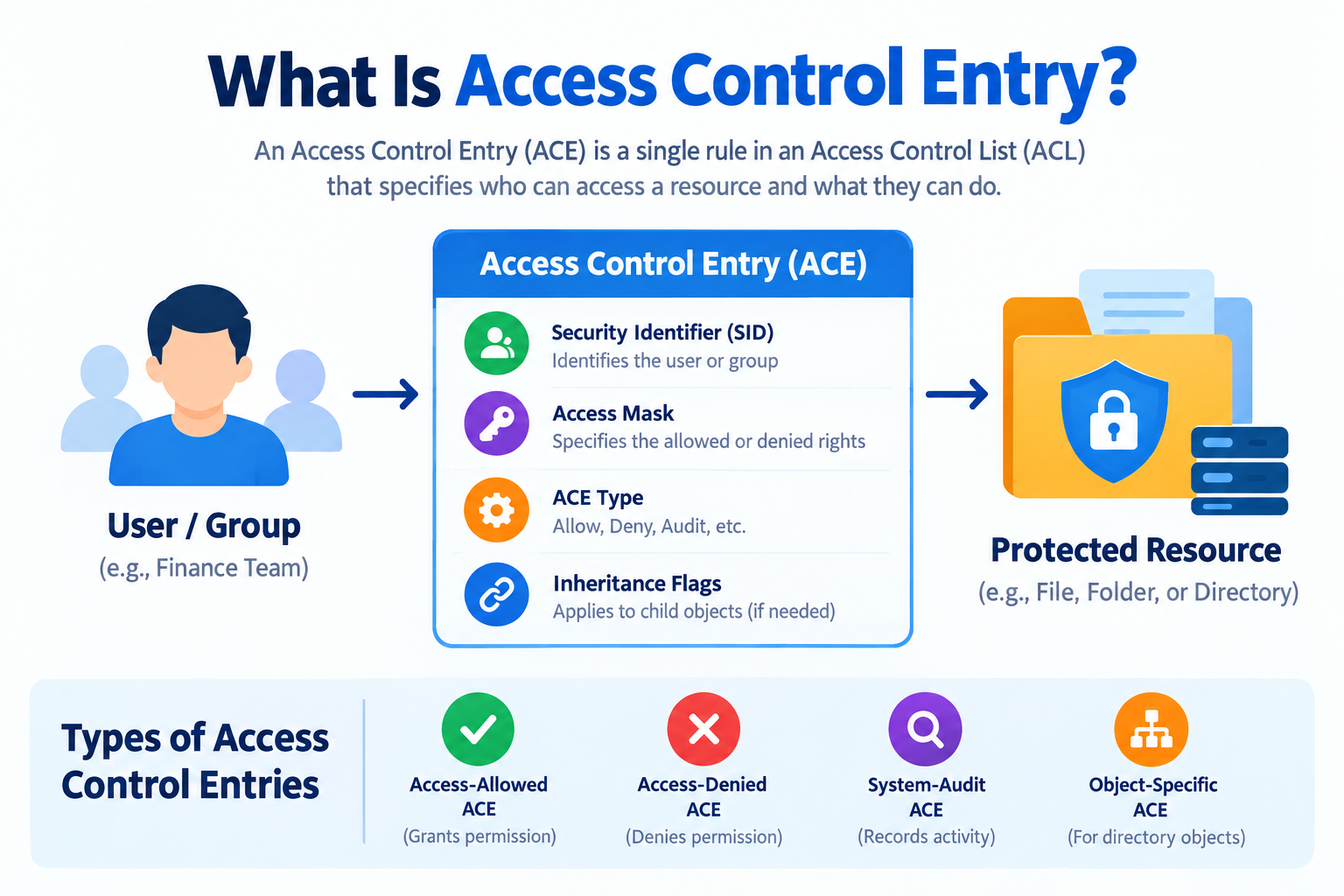
An Access Control Entry (ACE) is an individual rule within an Access Control List (ACL) that specifies which user or group can access a resource and what actions they are allowed or denied to perform. In Windows, ACEs help control access to files, folders, registry keys, and other protected objects.
For example, a company may allow its employees to view a shared document while restricting editing permissions to managers. The system uses access control rules to determine which actions each user can perform.
Understanding what is Access Control Entry is important for system administrators, IT professionals, cybersecurity learners, and anyone responsible for protecting sensitive information. ACEs help organizations manage permissions, prevent unauthorized access, and maintain better control over digital resources.
This guide explains how access control entries work, their main types, the difference between ACE and ACL, and how to view permissions in Windows. You will also learn about common configuration mistakes and practical ways to improve access security.
How Does an Access Control Entry Work?
An Access Control Entry works by connecting a user or group identity with specific permissions on a protected resource. When someone attempts to access that resource, Windows evaluates the applicable security rules to determine whether the requested action is allowed.
For example, imagine a folder containing confidential company documents. An administrator might configure permissions so that the finance team can read and edit files, while other employees cannot access them.
The process generally involves the following steps:
-
Identify the user: Windows identifies the account requesting access and its associated security information.
-
Locate the security rules: The operating system checks the resource’s security descriptor, including its relevant Access Control List.
-
Evaluate permissions: The system examines applicable ACEs to determine which requested actions are permitted or denied.
-
Make an access decision: Access is granted or refused according to the security rules and the requested operation.
-
Record relevant activity: Where auditing is configured, the system can record selected access attempts.
The exact result depends on the resource, the requested access rights, the applicable ACEs, and their evaluation order.
Example of an Access Control Entry
Suppose an administrator creates a folder called Company Reports with the following permissions:
| User or group | Permission | Result |
|---|---|---|
| Finance Team | Read | Can view reports |
| Finance Manager | Modify | Can view, edit, and manage files within the granted scope |
| General Employees | No applicable grant | Access depends on the complete security configuration |
Each permission rule is represented by an appropriate ACE within the relevant ACL.
This example illustrates how access control entry permissions allow administrators to define access at a more detailed level instead of giving every employee the same rights.
What Are the Main Components of an Access Control Entry?
An ACE contains information that helps the operating system interpret and enforce a permission rule. The exact structure varies depending on the ACE type and the resource being protected.
The main components commonly include the following:
1. Security Identifier (SID)
A Security Identifier (SID) identifies a user, group, or other security principal in Windows. An ACE can use a SID to specify whose access rights the rule affects.
For example, an administrator can configure a rule for a particular employee or a group such as Finance Team. Group-based permissions can simplify administration when several people need similar access.
2. Access Mask
The access mask specifies the rights associated with an ACE. Depending on the protected resource, these rights may include reading, writing, executing, deleting, or modifying permissions.
For instance, a user might be allowed to read a document but not modify its contents. This helps enforce the principle of least privilege, which means granting only the permissions necessary to perform a task.
3. ACE Type
The ACE type indicates the purpose of the entry. It may allow access, deny specified rights, or support auditing, depending on the type of list and entry.
The ACE type helps the system determine how to interpret the rule during access checks.
4. Inheritance Flags
Inheritance flags determine whether certain permissions can be inherited by child objects, such as files and subfolders.
For example, an administrator may configure a folder so that selected permissions apply to the files created inside it. Incorrect inheritance settings can unintentionally expose sensitive information or prevent users from accessing resources they need.
5. Object-Specific Information
Some ACEs used with directory service objects contain additional information, such as object-type identifiers. These fields can restrict permissions to particular types of objects or attributes.
Such entries are particularly relevant when administrators manage detailed permissions in Active Directory.
What Are the Types of Access Control Entries?
There are several types of ACEs in Windows. They differ according to whether they grant permissions, deny access, record audit activity, or apply specialized permissions to directory objects.
1. Access-Allowed ACE
An access-allowed ACE grants specified permissions to a user or group, subject to the applicable security rules.
Example: A team member receives permission to read documents stored in a shared folder.
This type of entry supports everyday activities while allowing administrators to restrict access to sensitive resources.
2. Access-Denied ACE
An access-denied ACE explicitly denies specified access rights to a user or group.
Example: An employee may be prevented from modifying a restricted configuration file.
Deny rules require careful management because their effect depends on the complete ACL and how the system evaluates it. Administrators should not assume that every deny entry automatically overrides every allow entry in every situation.
3. System-Audit ACE
A system-audit ACE specifies which access attempts should generate audit records. These entries are associated with a System Access Control List (SACL).
Example: A security administrator can configure auditing to record selected attempts to access confidential files.
Audit entries help organizations investigate suspicious activity, review security events, and understand how protected resources are being accessed. Auditing must be configured appropriately to capture the events that matter.
4. Object-Specific ACE
Object-specific ACEs are used with supported directory service objects, such as objects in Active Directory. They can include additional information that limits the rule to particular object types or attributes.
Example: An administrator may grant a delegated account permission to reset passwords without granting it unrestricted administrative access.
These entries help organizations implement more granular permissions in directory environments.
Quick Comparison of ACE Types
| ACE type | Main purpose | Example |
|---|---|---|
| Access-allowed ACE | Grants specified rights | Allow reading a file |
| Access-denied ACE | Denies specified rights | Prevent a user from modifying a resource |
| System-audit ACE | Defines access attempts to audit | Record selected access attempts |
| Object-specific ACE | Applies specialized directory permissions | Restrict rights to a particular directory object or attribute |
These categories describe common ACE forms rather than every possible specialized ACE structure supported by Windows.
Access Control Entry (ACE) vs. Access Control List (ACL)
An Access Control Entry and an Access Control List are closely related, but they are not the same thing. An ACE is one permission rule, while an ACL is a collection of ACEs associated with a protected resource.
Think of an ACL as a list of instructions and each ACE as one individual instruction on that list.
For example, a folder’s ACL might contain one entry allowing the Finance Team to read files, another allowing the Finance Manager to modify them, and another defining which access attempts should be audited.
Key Differences Between ACE and ACL
| Feature | Access Control Entry (ACE) | Access Control List (ACL) |
|---|---|---|
| Definition | A single access-control rule | A collection of access-control entries |
| Main purpose | Defines a particular permission or audit rule | Organizes rules for a resource |
| Contents | Identity, rights, and type-specific information | Multiple ACEs, where present |
| Scope | One rule within a list | The list associated with a resource |
| Example | Allow a group to read a file | The complete set of access rules for that file |
What Are the Types of ACL?
Windows primarily uses two types of ACLs for object security.
Discretionary Access Control List (DACL): A DACL contains ACEs that specify which users or groups are allowed or denied access to a resource. It plays a central role in enforcing permissions.
System Access Control List (SACL): A SACL contains audit-related ACEs that specify which access attempts should be recorded. It supports security monitoring and investigation rather than directly serving as the ordinary permission-granting list.
A resource’s security descriptor can contain both a DACL and a SACL. Their presence and configuration determine how access and auditing are handled.
For more background on related security terminology, see Wikipedia’s access control overview.

How to View Access Control Entries in Windows
You can inspect access permissions through Windows File Explorer or use PowerShell for more detailed information. The graphical method is suitable for beginners, while PowerShell can be helpful when managing several files or folders.
Method 1: Use File Explorer
Follow these steps to inspect the permissions on a file or folder:
-
Open File Explorer and locate the file or folder you want to inspect.
-
Right-click the item and select Properties.
-
Open the Security tab.
-
Select a user or group in the displayed list.
-
Review the permissions shown in the permissions panel.
-
Select Advanced to inspect more detailed security settings, including entries and inheritance information.
The Advanced Security Settings window provides a more detailed view of the access rules than the standard Security tab.
Depending on your account and the object’s security configuration, you may need administrator privileges to view or change certain settings.
Method 2: Use PowerShell
PowerShell allows you to view access control information for a file or folder in Windows. This method is useful for checking file permissions, identifying users and groups, and reviewing access control entries (ACEs).
Step 1: Open PowerShell
Open Windows PowerShell on your computer.
Step 2: Run the following command
Get-Acl -Path "C:\Example\Reports" | Format-ListReplace C:\Example\Reports with the actual path to your file or folder.
This command displays security information, including the resource owner and access rules.
Step 3: View access control entries
To display the access rules in a more organized format, run this command:
(Get-Acl -Path "C:\Example\Reports").Access |
    Format-Table IdentityReference, FileSystemRights, AccessControlType, IsInherited
This command displays the following details:
- IdentityReference: The user or group associated with the permission.
- FileSystemRights: The access rights assigned by the rule, such as reading, writing, or modifying files.
- AccessControlType: Indicates whether the rule allows or denies specified access rights.
- IsInherited: Shows whether the permission is inherited from a parent object.
Note: Replace the example path with a valid path on your computer. These commands display security information but do not modify permissions. The results show configured access rules, which may not fully represent a user’s effective access in every situation.
Why Is Access Control Entry Important for Security?
Access control entries help organizations protect information by defining precise permissions for individual users and groups. Without properly configured access rules, sensitive files and system resources may be accessible to people who do not need them.
Here are the main benefits of managing ACEs correctly.
1. Prevents Unauthorized Access
ACEs help restrict access to protected resources by enforcing specified permissions. For example, only authorized employees may be allowed to open a folder containing customer records.
2. Supports the Principle of Least Privilege
Users should receive only the permissions necessary to perform their responsibilities. Properly managed ACEs help prevent excessive access and reduce the potential damage caused by compromised accounts.
3. Improves Accountability
When audit rules are configured appropriately, organizations can record selected access attempts. These records help security teams investigate incidents and identify potentially suspicious activity.
4. Simplifies Permission Management
Administrators can assign permissions to groups rather than configuring every user individually. This makes it easier to manage access when employees join teams, change roles, or leave an organization.
5. Reduces Security Risks
Unnecessary permissions can expose confidential information or allow unwanted changes to important resources. Regularly reviewing ACEs helps administrators identify and correct potentially unsafe configurations.
Common Access Control Entry Problems and How to Fix Them
Even a properly designed access-control system can become difficult to manage when permissions are configured incorrectly. Understanding common issues helps administrators maintain a more secure Windows environment.
Incorrect Permissions
A user may receive more access than necessary or may be unable to perform a legitimate task.
Solution: Review the relevant ACL and confirm that each user or group has only the permissions required for its responsibilities.
Inheritance Problems
Permissions inherited from parent folders can affect files and subfolders in unexpected ways.
Solution: Inspect inheritance settings in Advanced Security Settings before changing individual entries. Understand how the change may affect child objects.
Excessive User Privileges
Overly broad permissions can increase the risk of accidental deletion, unauthorized modification, or misuse of sensitive information.
Solution: Apply least-privilege principles and remove unnecessary permissions after confirming that they are no longer required.
Conflicting Access Rules
Multiple ACEs can interact in ways that make access decisions difficult to understand. The result may depend on the type and order of entries, the user’s group memberships, and the requested access rights.
Solution: Review the complete security configuration instead of examining a single ACE in isolation. Test permission changes using an appropriate account and resource.
Missing Audit Information
An organization may be unable to investigate certain access attempts if the necessary auditing is not configured.
Solution: Configure appropriate SACL entries and Windows auditing policies for important resources, while ensuring that audit records are retained and reviewed.
Best Practices for Managing Access Control Entries
Following a consistent approach can help administrators keep access permissions secure and easier to maintain.
-
Review permissions regularly: Check sensitive files, folders, and directory objects for unnecessary access.
-
Use groups where appropriate: Assign permissions to well-managed groups instead of creating numerous individual rules.
-
Follow least privilege: Grant only the rights required for each user’s responsibilities.
-
Understand inheritance: Verify how permissions propagate to child objects before changing security settings.
-
Document important changes: Keep records of significant permission changes and their reasons.
-
Enable relevant auditing: Configure appropriate audit policies for resources that require monitoring.
-
Remove outdated access: Review permissions when employees change roles or accounts are decommissioned.
-
Test before deploying changes: Confirm that security updates do not disrupt legitimate users or critical applications.
These practices help reduce permission sprawl and improve the overall security of systems that rely on access control lists.
For additional technical reading, you can explore Microsoft’s Windows security documentation and TechScrope. Use authoritative documentation when verifying system-specific behavior or planning configuration changes.
Conclusion
An Access Control Entry (ACE) is a fundamental part of Windows security because it defines an individual access or audit rule for a protected resource. When combined within an Access Control List, these entries help administrators manage permissions for users, groups, files, folders, and directory objects.
Understanding how ACEs work, how they differ from ACLs, and how to inspect their permissions makes it easier to identify configuration problems and protect sensitive information. By following least-privilege principles and reviewing access rules regularly, organizations can maintain more secure and manageable systems.
Frequently Asked Questions (FAQs)
1. What Is Access Control Entry in Windows?
An Access Control Entry in Windows is an individual security rule that specifies access rights for a user, group, or other security principal on a protected resource. It forms part of an ACL and helps determine which actions are allowed or denied.
2. What Is the Main Purpose of an ACE?
The main purpose of an ACE is to define a specific access or audit rule for a resource. It helps administrators control permissions at a detailed level and protect files, folders, and other system objects.
3. What Is the Difference Between ACE and ACL?
An ACE is a single permission or audit entry, whereas an ACL is a collection of ACEs associated with a resource. Multiple entries can work together to define the resource’s access-control rules.
4. Can an Access Control Entry Deny Access?
Yes. An access-denied ACE can deny specified access rights to a user or group. The final access decision depends on the complete security configuration and how the system evaluates the applicable rules.
5. How Can I View Access Control Entries in Windows?
You can inspect permissions by opening a file or folder’s Properties, selecting Security, and opening Advanced. Alternatively, PowerShell’s Get-Acl command can display security information and access rules.
6. What Are the Main Types of Access Control Entries?
Common ACE types include access-allowed ACEs, access-denied ACEs, system-audit ACEs, and object-specific ACEs. Each type serves a different purpose, depending on the resource and security requirements.
7. What Is the Difference Between DACL and SACL?
A Discretionary Access Control List (DACL) specifies which access rights are allowed or denied. A System Access Control List (SACL) defines which access attempts should be audited.
8. Can Incorrect ACE Settings Cause Security Problems?
Yes. Incorrect ACE settings can grant excessive privileges, restrict legitimate access, or create unintended access paths. Regular permission reviews, careful inheritance management, and appropriate auditing help reduce these risks.